
 By
By How to Check IMEI Number on iPhone: Complete Guide for iPhone Users
Every iPhone has a corresponding, unique International Mobile Equipment Identity, otherwise called IMEI. Every buyer should know how to find the IMEI on iPhones so they know how to authenticate the device before making a purchase, troubleshoot issues with warranty, track a device that has been misplaced, and determine if the device is a fake. Those who do their research about the IMEI number will find that knowing how to check IMEI number on the iPhone is a simple way to verify the authenticity of the iPhone.
This iPhone IMEI number guide will give answers to how an IMEI number can be located on any given device and how iPhone users can check IMEI online.
Understanding the Meaning Behind IMEI
IMEI, or International Mobile Equipment Identity, is simply a method used to provide a distinct identification to all mobile devices, such as your iPhone. Each device comes with a one-of-a-kind 15-digit number. The IMEI will help determine a device’s activation status, warranty, its carrier lock status, and whether the device is blacklisted.
As a buyer of a second-hand iPhone, knowing how to check IMEI number of iphone will protect you from purchasing counterfeit and fraudulent devices.
What Makes IMEI Important for iPhone Users?
Your iPhone’s IMEI number serves many functions, including:
– Authenticating the iPhone’s originality
– Determining carrier lock status
– Assessing warranty and activation status
– Providing information on stolen or blacklisted devices
– Enabling tracking in the event of theft
– Allowing Apple and network service providers to offer assistance
It is therefore essential to know how to check iPhone IMEI number, especially before buying used devices.
Checking the IMEI Number on iPhone
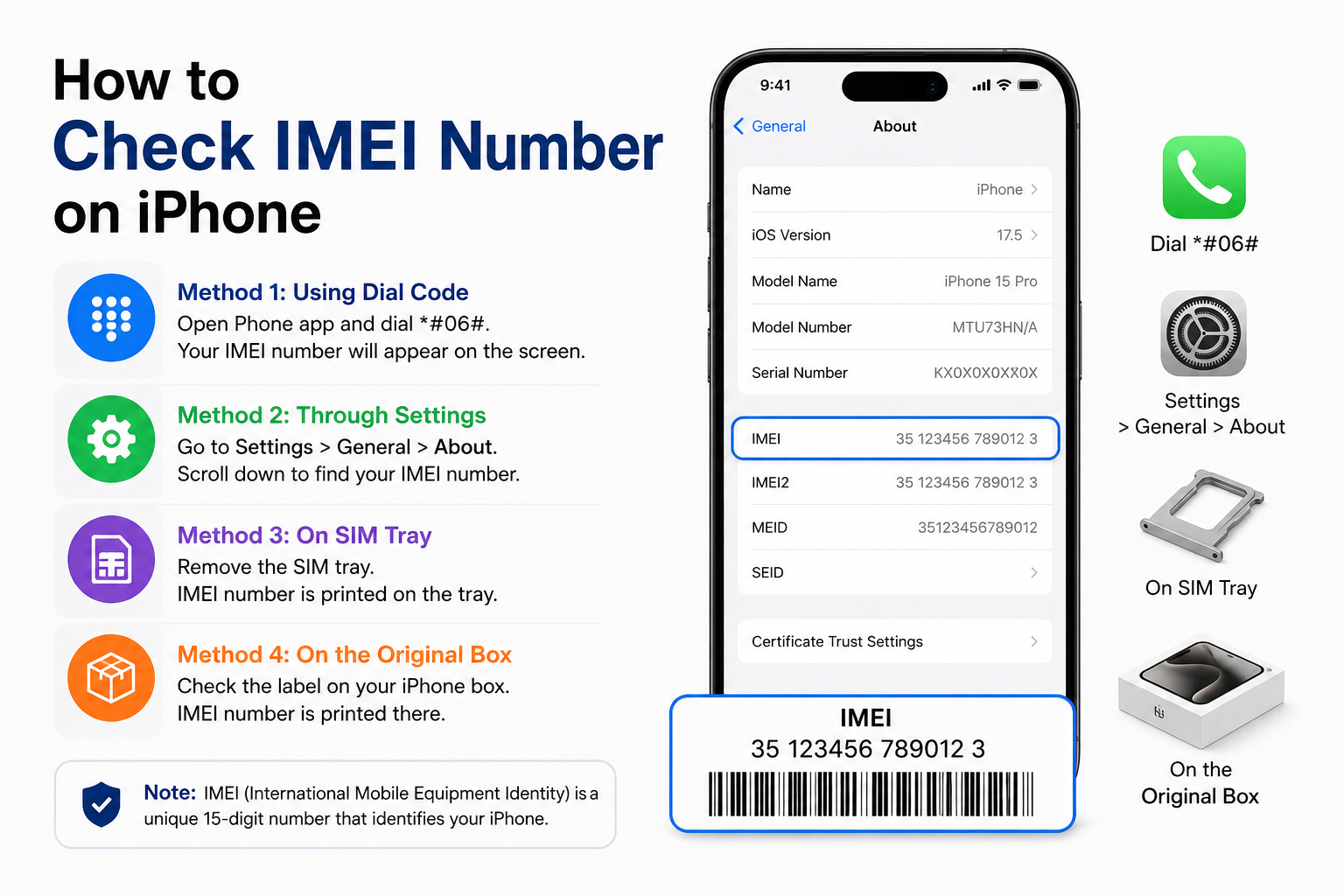
When investigating how to check IMEI number on iPhone, there are many options. Here are the most common four:
1. Accessing IMEI through the iPhone Settings
This option is certainly the most straightforward. Here’s how:
1. From the Home screen, click “Settings”
2. Click “General”
3. Select “About”
4. Locate IMEI, typically, near the bottom of the screen
This is the most common response for those searching “how to check IMEI number on iPhone.”
2. Use a USSD Code
This option is almost as easy. Open the Phone app and simply enter:
*#06#
Your device will display the IMEI number.
This option is likely the simplest of the three in answering how to find iPhone IMEI number without entering Settings.
3. Locating IMEI on the SIM Tray
For some iPhone models, Apple designates the SIM Tray as a location for the IMEI number. Remove the SIM Tray and inspect it.
Older models of iPhones may also have the IMEI number engraved on the back of the phone.
This technique is helpful when troubleshooting the imei verify iphone process on a phone that won’t even turn on.
4. Use Finder or iTunes to Locate the IMEI
You can also locate the IMEI on a computer.
For Mac Users:
– Launch your Finder application after connecting the iPhone to the Mac.
– Choose the iPhone from the sidebar
– Select the button that contains the information about your device.
For Windows Users:
– Install the iTunes application.
– After connecting the iPhone to the computer, launch iTunes.
– Select the device icon that is visible on the upper left of the iTunes application.
You will see the IMEI information displayed on the screen.
This method of locating the IMEI number of an iPhone is preferred when the screen is broken.
5. Locating the IMEI on the Original Packaging Box
Apple makes the IMEI number available on the original packaging box of an iPhone. The number that is coded to the packaging is located near the barcode, and is 15 digits in length.
Before buying an iPhone that is preowned by someone else, you should ensure that the IMEI number previously printed on the box is the same as the IMEI number listed in the phone settings. This can help ensure that you don’t obtain a phone that is fake.
IMEI Lookup iPhone: Why IMEI Verification is Important
Using an imei lookup iphone service provides buyers with a lot of useful information about the device. Some of the information that can be obtained using these services online include:
– The number of the model
– The current status of the phone
– The warranty status
– The current carrier balance
– The balance on the phone that can not be used for calls
– The date when the purchase was made
If you are about to purchase a previously used iPhone, it’s also highly recommended to do an IMEI verification on the iPhone.
Online Tools for IMEI Verification for iPhones
With the existence of multiple IMEI checkers, verifying device data can be as simple as inputting a number and analyzing a report.
When using an IMEI Verifier, make sure:
– The stated model matches the seller’s description
– The device is not blacklisted
– The activation lock is off
– The data regarding storage and color are accurate
Done correctly, an IMEI verification can prevent you from purchasing a fraudulent or stolen device.
Meaning of the Checking of the iPhone Model Number
Along with an IMEI number, Apple products have a model number which helps determine where and in what state condition the device was made.
iPhone model number can tell you:
– Was the iPhone initially bought as new or as refurbished
– What country was the device (and incorporates the region outside of selling)
– What carrier was associated with the device
– What information was related with the Replacement device
Model number can be found in:
– Settings > General > About
– The original packaging
When buying a used iPhone, checking the IMEI number and the iPhone model number will provide more assurance.
Key Instances Where IMEI is of Value
Buying a used iPhone
Before getting any second-hand phone, knowing how to check for imei number of iphone and verifying it is essential.
Lost or Stolen Devices
By the IMEI number, the device can be blocked by the network provider, making the device of no use for the thieves.
Warranty Claims
During warranty verification, Apple may request the IMEI number.
Selling Your iPhone
To show device authenticity, you can share the IMEI with your buyer.
Safe IMEI Verification Tips
Hit the safety tips below while running an IMEI lookup iPhone to ensure safety precautions are met:
– Consult IMEI checker sites that can be trusted
– Do not disclose your Apple ID to anyone
– Find matching IMEI on your phone, its box, and under settings
– Do not buy phones with information that does not match
– Ensure the Activation lock is off
The aforementioned safety measures will ensure that the IMEI verification process goes without any problems.
What is IMEI and Serial Number
A lot of individuals are not well informed about the differences between IMEI numbers and serial numbers.
IMEI Number
– Primarily for identifying cellular devices
– Given to devices of mobile networks
– Allows for tracking and blacklisting of devices
Serial Number
– Used for guarantee and support by Apple
– Discoveries background on your device
Both of these are vital numbers to know, however, IMEI number plays a crucial role when it comes to network verification.
Conclusion
Every iPhone user needs to know how to check IMEI number. It’s essential when clarifying authenticity, verifying a secondhand purchase, or reviewing warranty, among other things. There are lots of good and valid reasons behind running an IMEI check.
Finding the IMEI can be done with any number of different methods: through your settings, using dial codes, retrieving it from the SIM tray, through iTunes, and even from device packaging. After this process, it should be routine to run an iPhone IMEI lookup to find the status of the device and avoid scams.
When doing your verification of iPhone IMEI, please take your time and check the particulars if you are going to buy a secondhand iPhone. For added confidence check the iPhone IMEI and then perform an Apple checker model number to help you verify and confirm that the Apple device you are purchasing is original.